




GmailTeamo AI

Gmail integration with Teamo AI: Your inbox. Your priorities.

Find important emails, summarize conversations and prepare replies with Teamo AI using your Gmail inbox.

  • Read emails and threads
  • Find relevant messages
  • Create drafts and send emails

How Teamo AI helps in your daily work

Example requests. Results depend on the data and permissions available to you.

Example

Summarize emails with AI

Sam
Sam: Summarize the latest email conversation with our supplier.
Teamo AI
Get an overview of the discussion and unanswered questions.
Example chat · Results depend on data and access
Example

Draft replies to customer emails

Lea
Lea: Draft a reply to the question about delivery.
Teamo AI
A draft is ready for review; you decide whether to send it.
Example chat · Results depend on data and access
Example

Identify tasks and commitments in emails

Jonas
Jonas: Read these email threads and list open tasks, promised dates and unanswered questions. Flag unclear ownership.
Teamo AI
Review a task overview from the messages read. Unclear dates and owners remain explicitly unresolved.
Example chat · Results depend on data and access

Questions from everyday work

These public discussions describe individual experiences with the respective services. They are not Teamo AI customer testimonials or a representative survey.

n8n Communityn8n Community · 2020
Community post

How do emails become tasks without duplicates?

In a 2020 n8n thread, a user asks how to create Asana tasks from labelled Gmail messages without processing the same email again. The discussion recommends retaining source IDs or checking existing tasks.

Read the discussion
How you can use Teamo AI

First ask Teamo AI to extract commitments and next steps from selected messages. Sending them to a task system requires that system’s own connection. A recurring workflow also needs an explicit duplicate check; connecting Gmail alone does not configure one.

How to connect Gmail

  1. Enable the integration

    An admin enables the integration for your team in Teamo AI.

  2. Select Gmail

    Open your integrations in Teamo AI and choose Gmail.

  3. Sign in and connect

    Sign in to Gmail and approve access. You’re ready to get started.

Requirements and limitations

Access depends on the Google permissions you grant. Creating a draft does not send it.

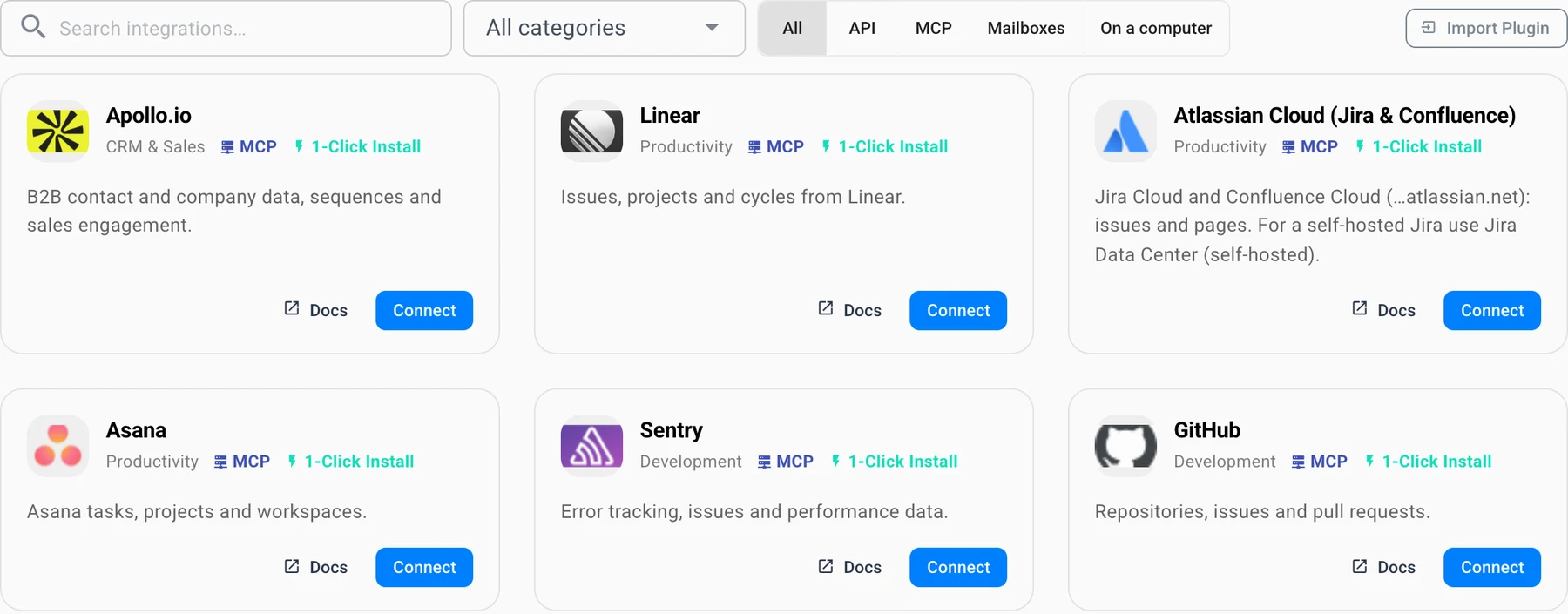
The integration selection in Teamo AI. Available services depend on your setup.
Integration catalog in Teamo AI showing available services
The integration selection in Teamo AI. Available services depend on your setup.

What the connection supports

These functions are declared in the plugin definitions. They apply to the respective connection; for Microsoft 365, to the full suite. What you can use also depends on your account, permissions and organization’s settings.

  • Read emails and threads
  • Find relevant messages
  • Create drafts and send emails

Gmail

  • Writing style
  • Mailbox
  • Sending
  • Insights
  • Read data
  • Create and change data

Your access rights still apply

Teamo AI uses the connected account and the data shared with it. Personal connections and shared accounts depend on the service’s capabilities and your team settings. Changes and sending actions are subject to the applicable approvals.

Questions about Gmail and Teamo AI

What can Teamo AI do with Gmail?

Find important emails, summarize conversations and prepare replies with Teamo AI using your Gmail inbox. Read emails and threads. Find relevant messages. Create drafts and send emails.

What do I need to connect?

Enable the integration: An admin enables the integration for your team in Teamo AI. Select Gmail: Open your integrations in Teamo AI and choose Gmail. Sign in and connect: Sign in to Gmail and approve access. You’re ready to get started.

What are the limitations?

Access depends on the Google permissions you grant. Creating a draft does not send it.

Is the integration included in the price?

Usage depends on your Teamo AI plan and the connected service. The provider may charge separate license or API fees. Check the current terms before connecting.

Can I connect Gmail to ChatGPT or Claude?

This page describes connecting Gmail to Teamo AI. Setting up Teamo AI does not automatically connect your account to the ChatGPT or Claude app. Those apps have their own available connections, account permissions and plans. To work with Gmail inside Teamo AI, use the integration described here.

Can I use Claude or GPT models with Gmail in Teamo AI?

Teamo AI supports models from providers including Anthropic (Claude) and OpenAI (GPT). The models you can select for working with Gmail depend on your plan, company configuration and available model capabilities. The connected account and its permissions still determine access. A ChatGPT or Claude subscription is not transferred.

Content reviewed on

Templates that run on Gmail

Set these templates up in Teamo AI with your Gmail connection.

All templates

Bring your tools together with Teamo AI.

Start with a specific use case and the data you choose to share.